Khoury College of Computer Sciences
CS 4550 / CS 5610 · Web Development · Fall 2026
Kambaz Quizzes
Final Project Requirements
Throughout this semester, we have been exploring various web development technologies, learning the fundamental tools and techniques that bring dynamic and interactive Web applications to life. To practice your development skills, you have been building Kambaz, our class's own version of a learning management system (LMS), inspired by a popular LMS. As we approach the culmination of our course, it's time to challenge yourselves further and extend Kambaz by developing a Quizzes section. This new feature will be a cornerstone of the Kambaz system, facilitating an interactive learning experience and enabling assessment to be seamlessly integrated into the online learning environment.
Authentication and Authorization
As part of the assignments we have implemented user authentication allowing multiple users to login simultaneously into the Kambaz application. Your implementation of the Quizzes must include support for multiple and simultaneous user signup, signin, and profile. Additionally you need to support two types of users: Faculty and Students. As a Faculty, a user can create, edit, preview, and delete quizzes. As a Student, a user can only view the list of quizzes, take a quiz, and view the final grade of the quiz. To simplify configuring a user's role, you can provide a checkbox or dropdown users can choose when signing up.
Courses per User
When a user logs in, they should only see the courses they are associated with. For instance, in the Dashboard faculty should only see the courses they have created and students should only see the courses they are enrolled in. In the assignments we implemented the signin and course creation process so associating courses with the currently logged in user should be simple. For students, you'll need to create a mechanism for them to enroll into a course. One suggestion would be that their Dashboard is initially empty since they are not enrolled in any course, but they can click on some link that would take them to a list of all the courses available from which they can choose which courses they want to enroll in. Then back in their Dashboard, they would only see the courses they are enrolled in. Clicking the course from the Dashboard takes a user to the Home screen of the course. Faculty can edit the content in a course, but students can not.
Quiz List Screen
Implement a Quizzes screen that display a list of quizzes as shown below. The Quizzes screen displays the quizzes for the current course. If a user navigates to a different course from the Dashboard, they would see a different list of quizzes.
Quizzes screen Requirements
- Displays list of quizzes
- Empty by default. Provide message to click Add Quiz button (+ Quiz)
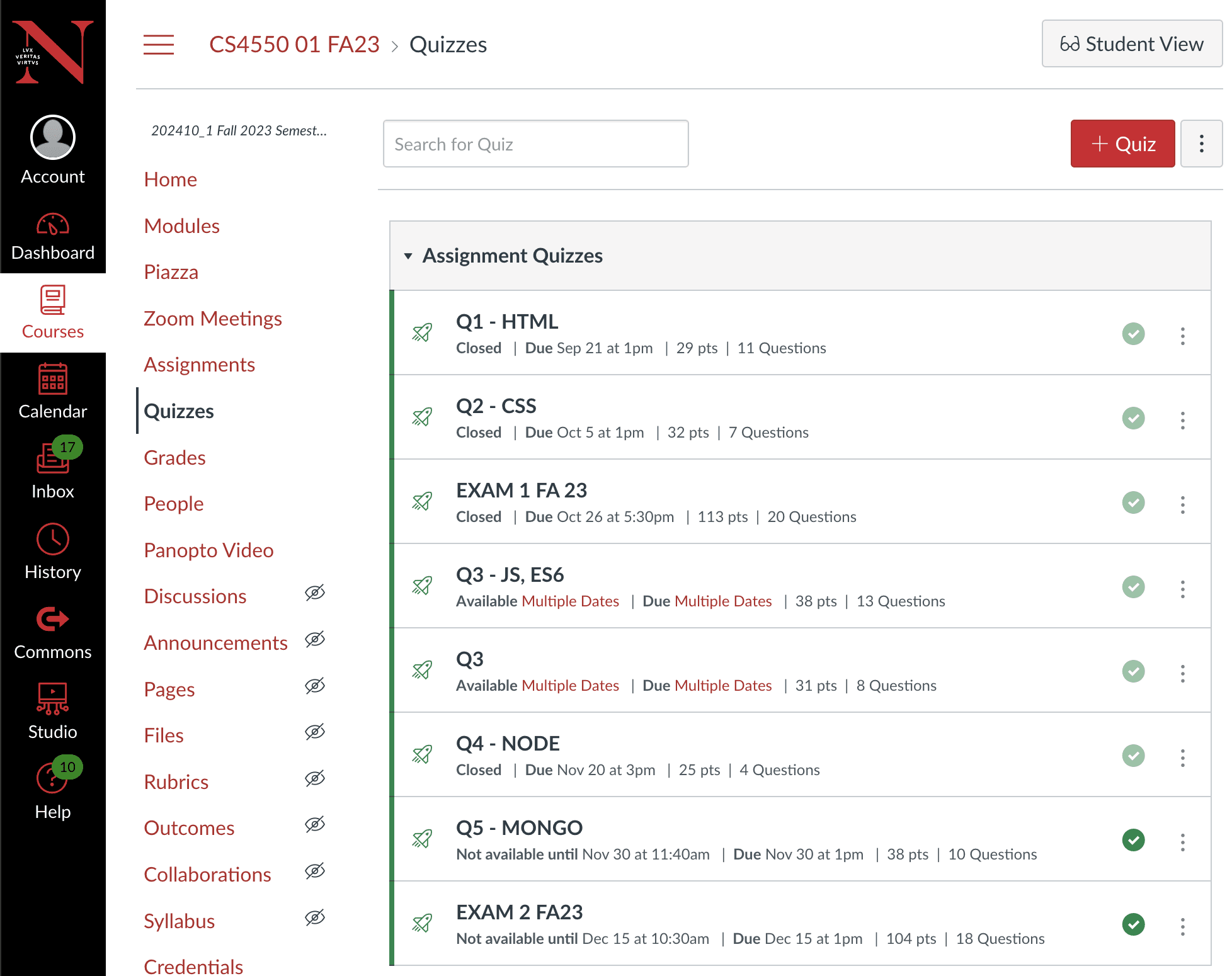
- Clicking Add Quiz button (+ Quiz) creates a new quiz with a default name and navigates to Quiz Details screen for editing the quiz. Alternatively, it can navigate to Quiz Details Editor screen shown later in this document
- Clicking the context menu button (3 dots) reveals the Quiz Context Menu with options
- Edit - navigates to Quiz Details screen
- Delete - removes the quiz and stays in the Quiz List screen
- Publish - publishes the quiz and option becomes Unpublish so you can unpublish
- Sort - allows sorting the course by name, due date, or available date
- Copy - allows copying the quiz to another course (optional)
- By default quizzes are unpublished and unavailable to students depicted with a Unpublished symbol 🚫as shown below
- Clicking Unpublished symbol publishes the quiz, makes it available to students and is represented with the Published symbol ✅as shown below
- Clicking quiz title navigates to Quiz Details screen
- Under the quiz title display
- Availability
- Closed - if current date is after quizzes Available Date
- Available - if current date is between Available Date and Available Until Date
- Not available until <AVAILABLE DATE> - if current date is before the Available Date
- Due date - as shown below
- Points - as shown below
- Number of questions - as shown below
- Score - if the current user is a student, the score from the last attempt is shown
- Availability
Quiz Details Screen
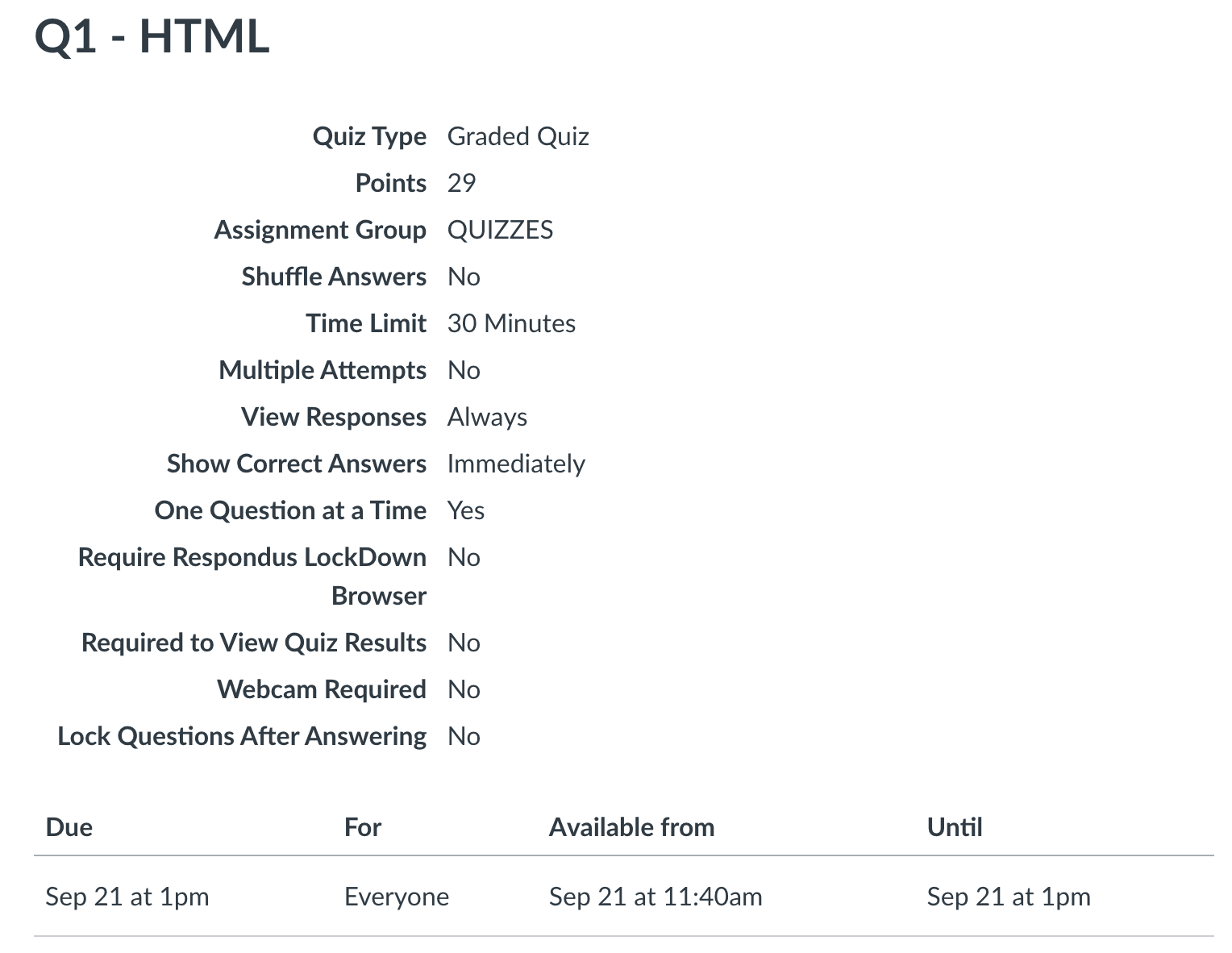
For faculty users, implement a Quizzes Details screen as shown below with only following properties. For students, provide a button to start the quiz. Ignore other properties
- Quiz Type - Graded Quiz (default), Practice Quiz, Graded Survey, Ungraded Survey
- Points - the sum of the points of all questions in the quiz
- Assignment Group - Quizzes (default), Exams, Assignments, Project
- Shuffle Answers - Yes (default) / No
- Time Limit - 20 Minutes (default)
- Multiple Attempts - No (default) / Yes
- How Many Attempts - 1 (default). If Multiple Attempts is Yes, then can configure how many times the student can retake the quiz
- Show Correct Answers - If and when correct answers are shown to students
- Access Code - Passcode students need to type to access the quiz. Default is blank
- One Question at a Time - Yes (default) / No
- Webcam Required - No (default) / Yes
- Lock Questions After Answering - No (default) / Yes
- Due date - date the assignment is due
- Available date - date assignment is available
- Until date - date assignment is available until
Quizzes Details Screen Requirements
- Displays summary of quiz properties
- Click Preview button to navigate to Quiz Preview screen
- Click Edit to navigate to Quiz Editor screen
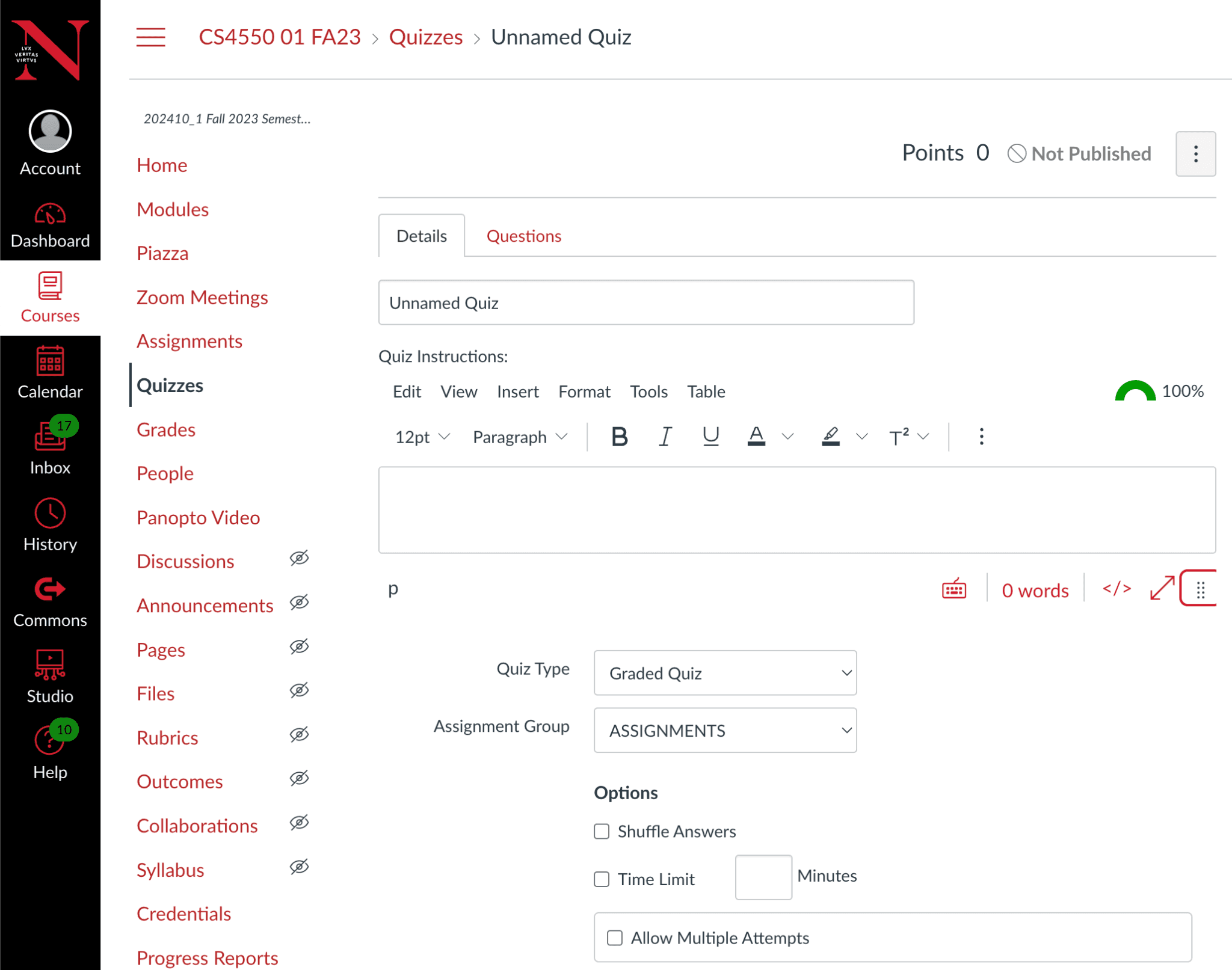
Quiz Details Editor screen
The Quiz Editor screen allows faculty to edit the meta data for a quiz. Implement the Quiz Editor screen as shown below. Feel free to give it your own twist
- Has 2 tabs
- Details (default)
- Questions
- Clicking Details navigates to the Quiz Details Editor screen
- Clicking Questions navigates to Quiz Questions Editor screen
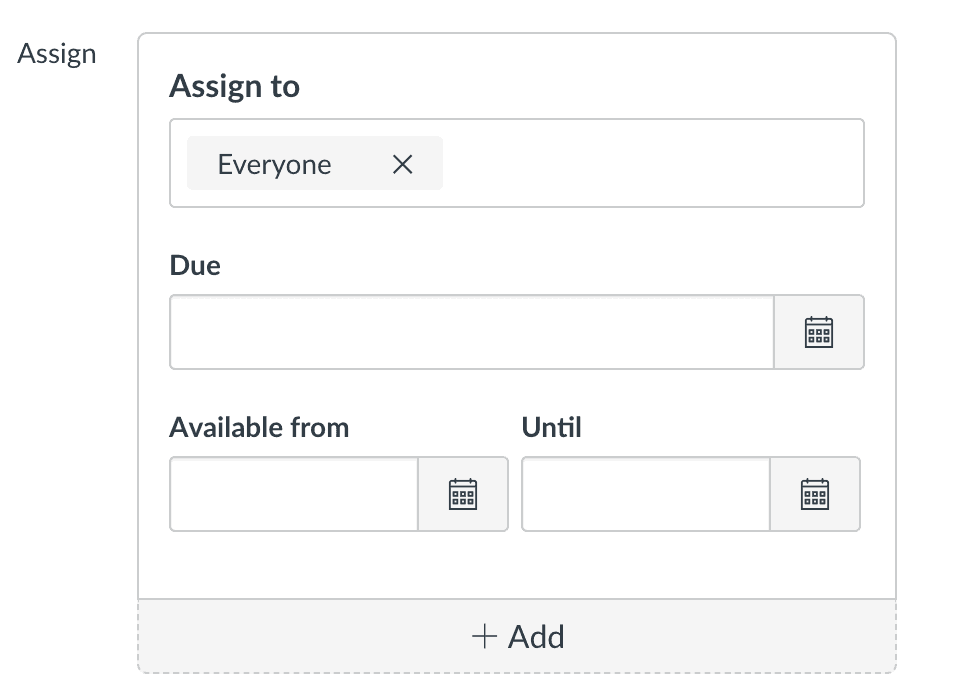
- Can edit fields
- Title (input text)
- Description (WYSIWYG)
- Assigned to - Ignore
- Quiz Type - Graded Quiz (default), Practice Quiz, Graded Survey, Ungraded Survey
- Points - the sum of the points of all questions in the quiz

- Assignment Group - Quizzes (default), Exams, Assignments, Project
- Shuffle Answers - Yes (default) / No
- Time Limit - 20 Minutes (default)
- Multiple Attempts - No (default) / Yes
- Show Correct Answers - If and when correct answers are shown to students
- Access Code - Passcode students need to type to access the quiz. Default is blank
- One Question at a Time - Yes (default) / No
- Webcam Required - No (default) / Yes
- Lock Questions After Answering - No (default) / Yes
- Due date - date the assignment is due
- Available date - date assignment is available
- Until date - date assignment is available until
- Clicking Save saves changes and navigates to Quiz Details screen
- Clicking Save and Publish saves & publishes quiz and navigates to Quiz List screen
- Clicking Cancel doesn’t save and navigates ton Quiz List screen
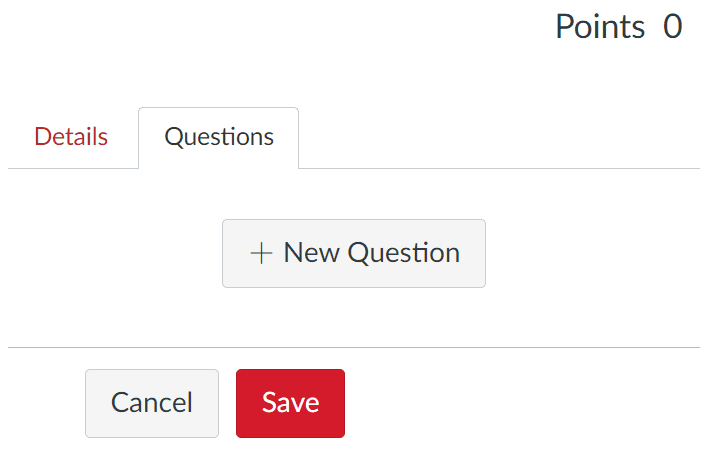
Quiz Questions Editor screen
Clicking Questions tab navigates to Quiz questions screen with the following behavior
- Displays list of questions for this quiz. List is initially empty
- Clicking New Question adds question at bottom of list. Multiple choice question is default
- New questions are displayed in edit preview mode by default
- Clicking Edit displays question in edit mode
- Dropdown to choose question type
- Points shows sum of all the points of each question.
- Minimum question types:
- True/false question
- Multiple choice question
- Fill in a blank question
- Clicking Cancel button dismisses the edits
- Clicking Save saves the edits but does not publish the quiz
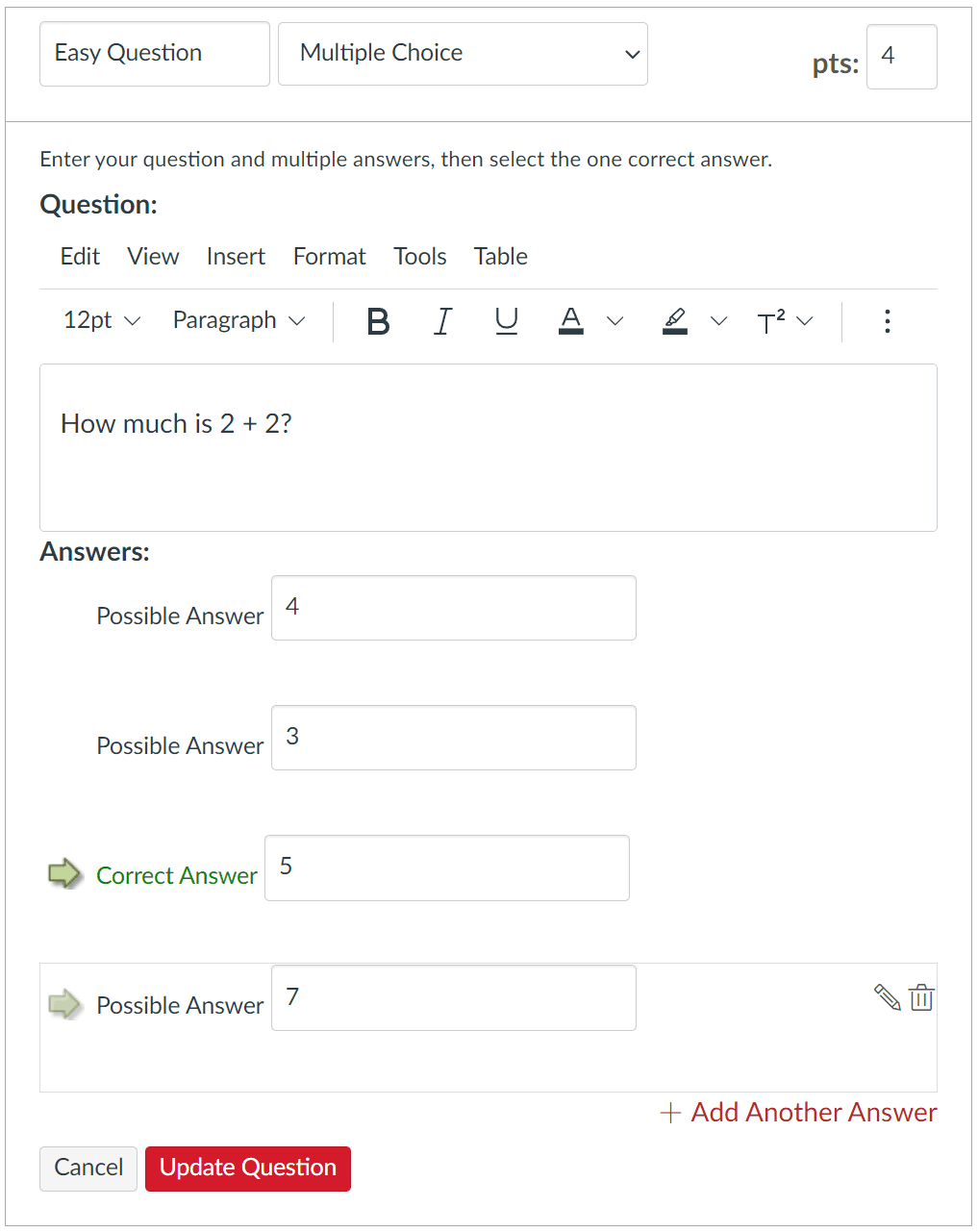
Here's an example of how Canvas renders the Questions editor, but feel free to give it your own twist.
Multiple Choice Question Editor (default)
Implement a Multiple choice type question where students need select one correct choice out a list of multiple choices. Faculty can configure the following question properties
- Title (input:text) - the title of the question
- Points (input:number) - how many points is the question
- Question (WYSIWYG)
- Choices (textarea) - multiple paragraphs of which only one is the correct choice. Faculty can add/remove any number of choices. Each choice has a radio button that selects it as the single correct answer.
- Cancel button discards changes
- Save/Update Question button saves question
Here's an example of how Canvas renders the Multiple choice question editor, but feel free to give it your own twist
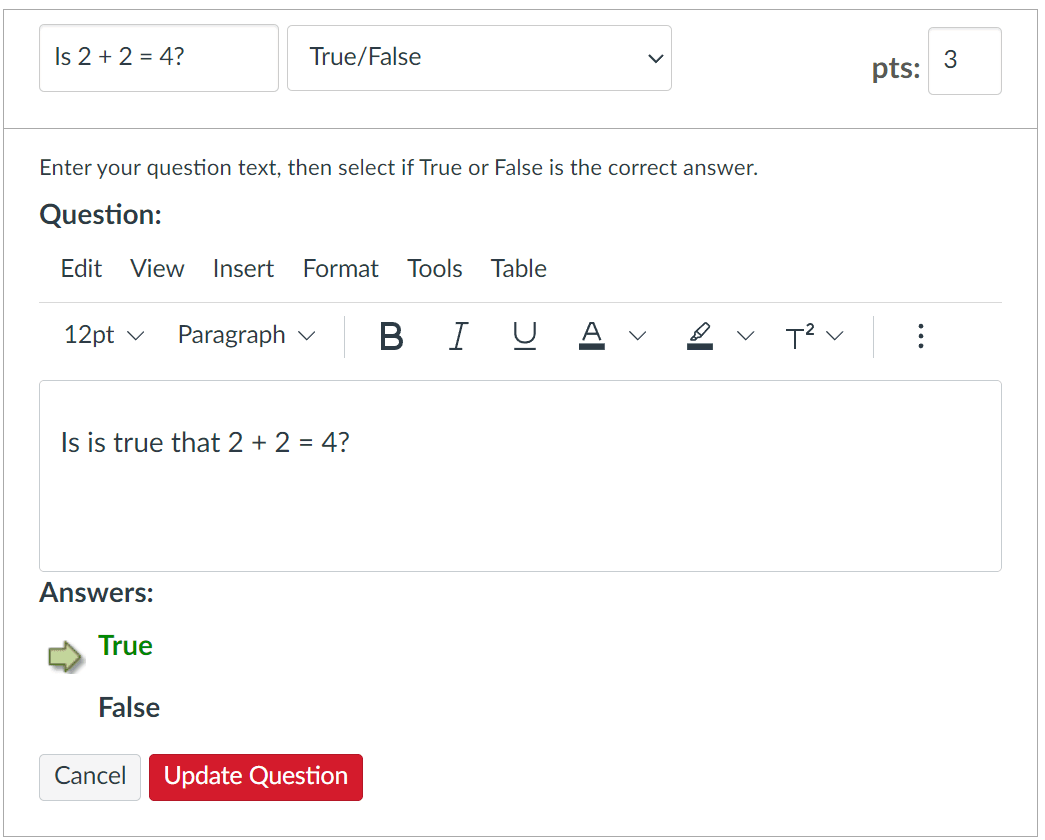
True/False Question Editor
Implement a True false type question where students need select whether a text is true or false. Faculty can configure the following question properties
- Title (input:text) - the title of the question
- Points (input:number) - how many points is the question
- Question (WYSIWYG)
- Tue/false - whether the correct answer is true or false. Can be a simple checkbox or a couple of radio buttons.
- Cancel button discards changes
- Save/Update Question button saves question
Here's an example of how Canvas renders the True false question editor, but feel free to give it your own twist
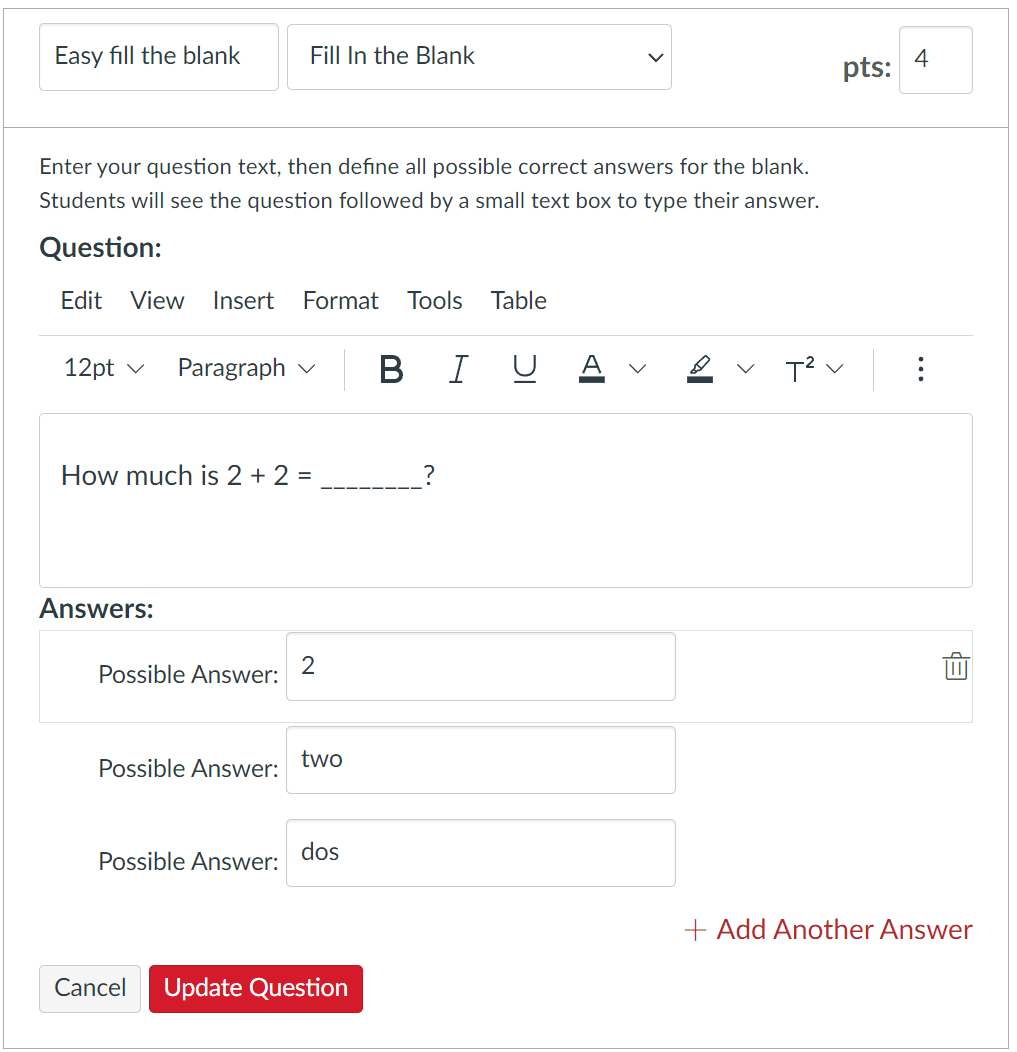
Fill in the Blank Question Editor
Implement a Fill in the blank type question where students need to fill in a blank and the answer is compared to various possibly correct answers. Faculty can configure the following question properties
- Title (input:text) - the title of the question
- Points (input:number) - how many points is the question
- Question (WYSIWYG)
- Blank (input:text) - a list of possible correct answers for the blank. Faculty can add/remove any number of possible correct answers. Answers can be case insensitive
- Cancel button discards changes
- Save/Update Question button saves question
Here's an example of how Canvas renders the Fill in the blank question editor, but feel free to give it your own twist
Quiz Preview screen
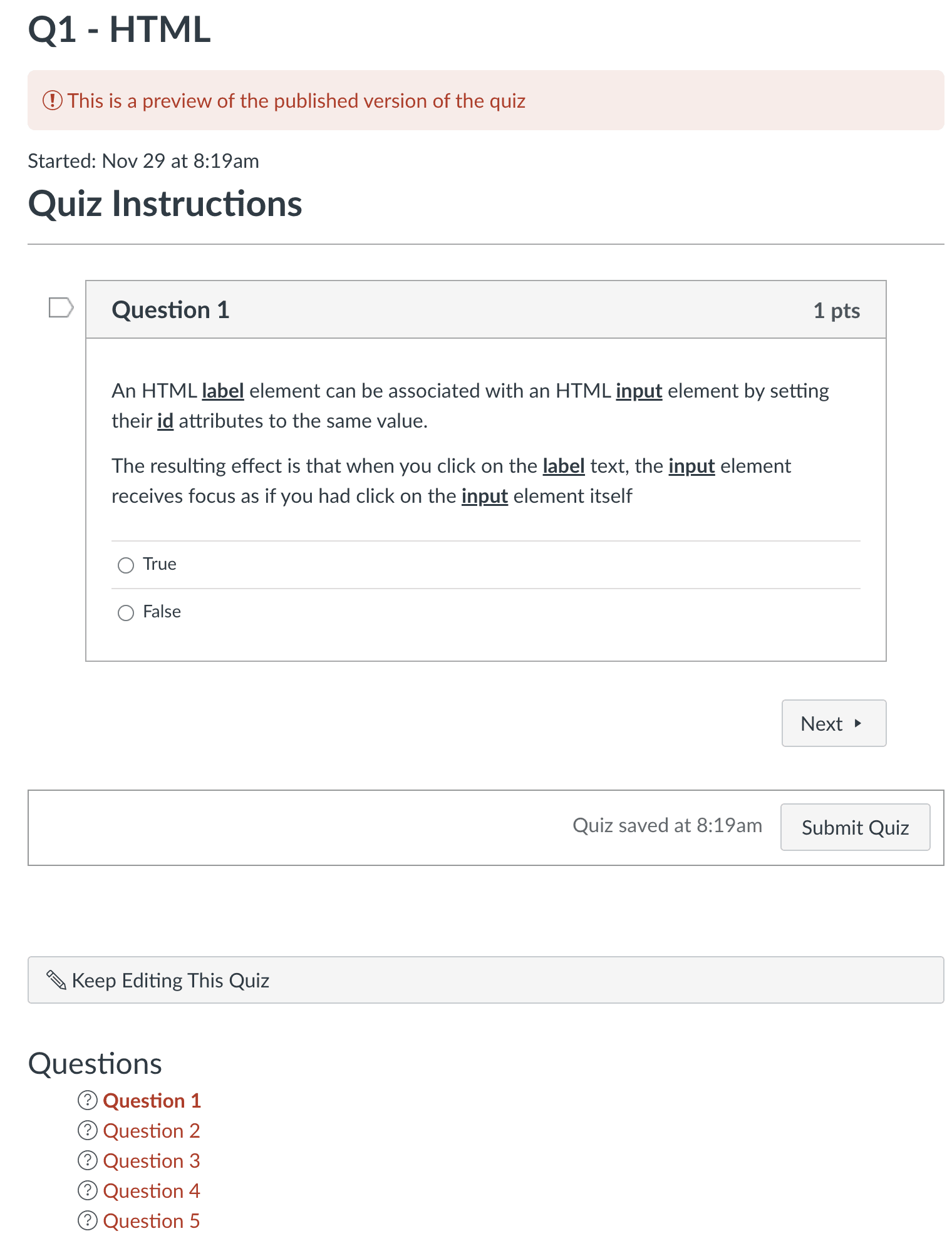
The Quiz Preview screen allow faculty to view the quiz as students would see the quiz. The faculty can answer the quiz and view the score they would get with the answers they provided. Like students, after the faculty completes a preview of the quiz, they can see what questions they got wrong and the final score. The answers from the faculty don't need to be stored in the database. Faculty can not edit the quiz while they are taking the quiz. To edit the quiz they can click on an Edit Quiz button that navigates them to the Quiz Questions Editor screen described earlier.
Persist Student Quiz Answers and Scores
Although faculty can edit and preview a quiz, a student can not edit a quiz, but can take the quiz as many times as configured in the How Many Attempts property in the Quiz Details screen. The answers to the quiz are stored per student so that they can come back later and see the when they took the quiz, what score they got, and what they answered the last time they took the quiz. Questions are highlighted as green or checkmark if they were correctly answered, and red or X if they were answered incorrectly. Students can't change the answers of a quiz they already took. They can take the quiz again if Multiple Attempts is configured and as many times as configured in How Many Attempts. Once a student has exhausted the number of attempts, they can not take the quiz again. Students can only see the answers and score to the last attempt. If another student takes the quiz, their answers are stored separately so that when they submit their answers and then comeback to view the results, they can see what they answered in their last attempt.
Ported from the former course Google Doc so staff can edit these requirements on the site.